

This quick step guide will show you how to troubleshoot audio and visual issues on Microsoft Teams.
For Speaker Issues
- Check speaker settings in Teams by clicking on your profile picture at the top of Teams, then select “Settings” > “Devices”. Make sure the correct speaker is selected.
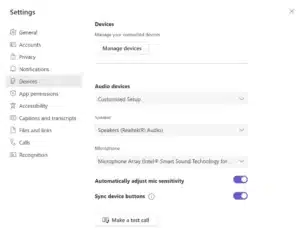
- Check volume levels by ensuring that your speaker volume is not muted or too low.
- Join a test call in Teams to see if others can hear you.
- Make sure your speakers are properly connected and powered on.
For Webcam Issues
- Check webcam settings in Teams clicking on your profile picture at the top of Teams, then select “Settings” > “Devices”. Make sure the correct webcam is selected.
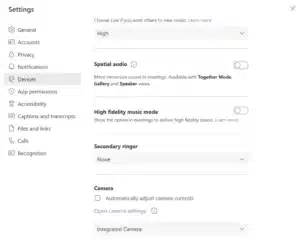
- Check privacy settings in Windows to ensure that Teams has permission to use your webcam.
- Join a test call in Teams to see if others can see you.
- Make sure your webcam is properly connected and powered on.
If you encounter any issues, please contact Computer Care Support for assistance.